

Dashboard
The session table, favorites, filters, and row actions.
The sidebar filters the table: All sessions, Active, Favorites, one entry per tag, one entry per integration, Users and Assumed roles under AWS IAM, and Hidden last. Settings → Appearance hides cloud sections. A dot next to an integration shows its sign-in state. Hover it for the label. The panel button at the left of the header, or ⌘, hides the sidebar and brings it back; the header then holds the Settings button.
Filters
The filter button next to the search box opens a row of chips: Cloud, Integration, Type, Region, Tag, and State. Each chip lists the values among the sessions the sidebar shows; pick any number. A chip with a pick shows it, or a count. The chips narrow what the sidebar and the search let through. Clear drops every pick, and so does closing the row. A chip whose values cannot narrow the table, such as Region when every session is in one region, stays out.
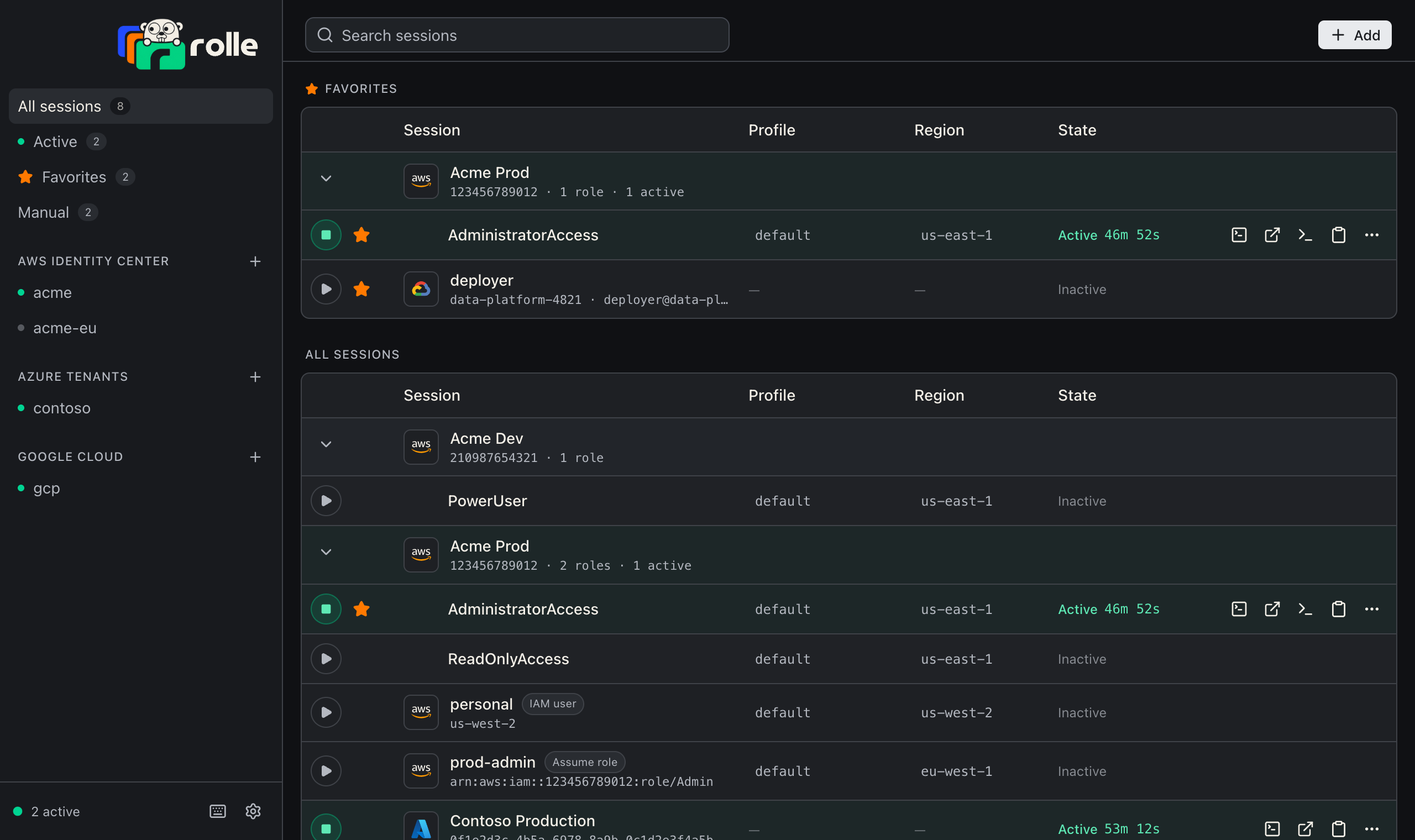
Session table
Sessions sort by provider (AWS, Azure, Google Cloud), then by name. Identity Center roles group under their account. Click the account row to collapse or expand it. Drag the edge of the Profile, Region, or State header to resize the column. Right-click the header row to show or hide those three columns. Settings → Appearance has Compact rows for one line per session and Group roles by account to list every role on its own row instead.
Each row shows the profile name and region (click to change), the state with a countdown, and actions. A session that ran out on its own reads Expired with the time since, in amber, until you start it again, stop it, or an hour passes:
| Action | Effect |
|---|---|
| Start / Stop | Start signs in first when the integration is signed out |
| Terminal | Opens a terminal with the session ready |
| Console | Opens the cloud console |
| Copy profile command | Copies aws --profile <name> |
| Copy env | Copies the credentials as shell exports |
| Star | Adds the session to the Favorites filter and the tray menu’s Favorites list |
| Hide | Removes the session from the lists and the tray menu. It shows under Hidden, while it runs, and when a search names it |
The row menu renames a session, sets the AWS profile name, changes the region, and removes the session. For an Identity Center role, the rename dialog’s Apply to this role in every account switch names the permission set in every account. Sync keeps that name for new roles. The account row’s menu hides or unhides every role of the account. A role that a later sync finds is not hidden. Hiding a session removes it from the favorites. Starring a hidden session unhides it. Right-click Hidden in the sidebar for Unhide all.
Tags
Tags are groups you define. The + next to Tags in the sidebar creates one. Click the icon left of the name to pick a Lucide icon and a color. Drag a session onto a tag, or use Tags in the session’s menu. A tag shows on its sessions as a chip. Its sidebar entry filters the table. Drag a tag onto another to reorder. The tag’s menu edits or removes it. Removing a tag takes it off every session. The CLI has rolle tag and rolle session tag.
Search
The search box matches the session name, account ID, role name, profile, and region. Account groups expand while you search.
Tray
The tray icon shows the active count (macOS) or a green dot (Windows, Linux). When Expiry notifications is on and a session, or an Identity Center sign-in with active sessions that cannot renew itself, is near expiry, the count gains an exclamation mark and the dot turns amber. When Settings → Appearance → Dock badge is on, the Dock icon (the taskbar button on Windows) shows how many are near expiry. Such a sign-in shows as a line under the count; click it to sign in again. Stop all stops every active session. The menu lists active sessions with a countdown. Each has a submenu: Stop, Open console, Open terminal, Copy credentials as env, and Copy profile command. Favorites lists every favorite, active ones first with the same submenu; the rest start with one click. An active favorite shows there only. Each tag has a submenu with its sessions. The AWS, Azure, and Google Cloud submenus list the rest, with Identity Center roles under their account. Settings… opens the settings dialog. When Settings → General → Keep running in the tray is on, closing the window keeps rolle in the tray.
Help
The help button at the bottom of the sidebar opens the documentation, the changelog, the bug form with your version and platform filled in, and writes a support bundle.
Keyboard shortcuts
Hold ⌘ (Ctrl on Windows and Linux) to show each shortcut as a badge next to its control. Press ⌘/ or the keyboard button at the bottom of the sidebar for the full list.
| Action | macOS | Windows and Linux |
|---|---|---|
| Settings | ⌘, | Ctrl+, |
| Search sessions | ⌘F | Ctrl+F |
| Import from this machine | ⌘I | Ctrl+I |
| Sidebar filters, top to bottom | ⌘1 to ⌘9 | Ctrl+1 to Ctrl+9 |
| Show or hide the sidebar | ⌘\ | Ctrl+\ |
| Clear the search, close a dialog | Esc | Esc |
| Keyboard shortcuts | ⌘/ | Ctrl+/ |