

Dashboard
The session table, favorites, filters, and row actions.
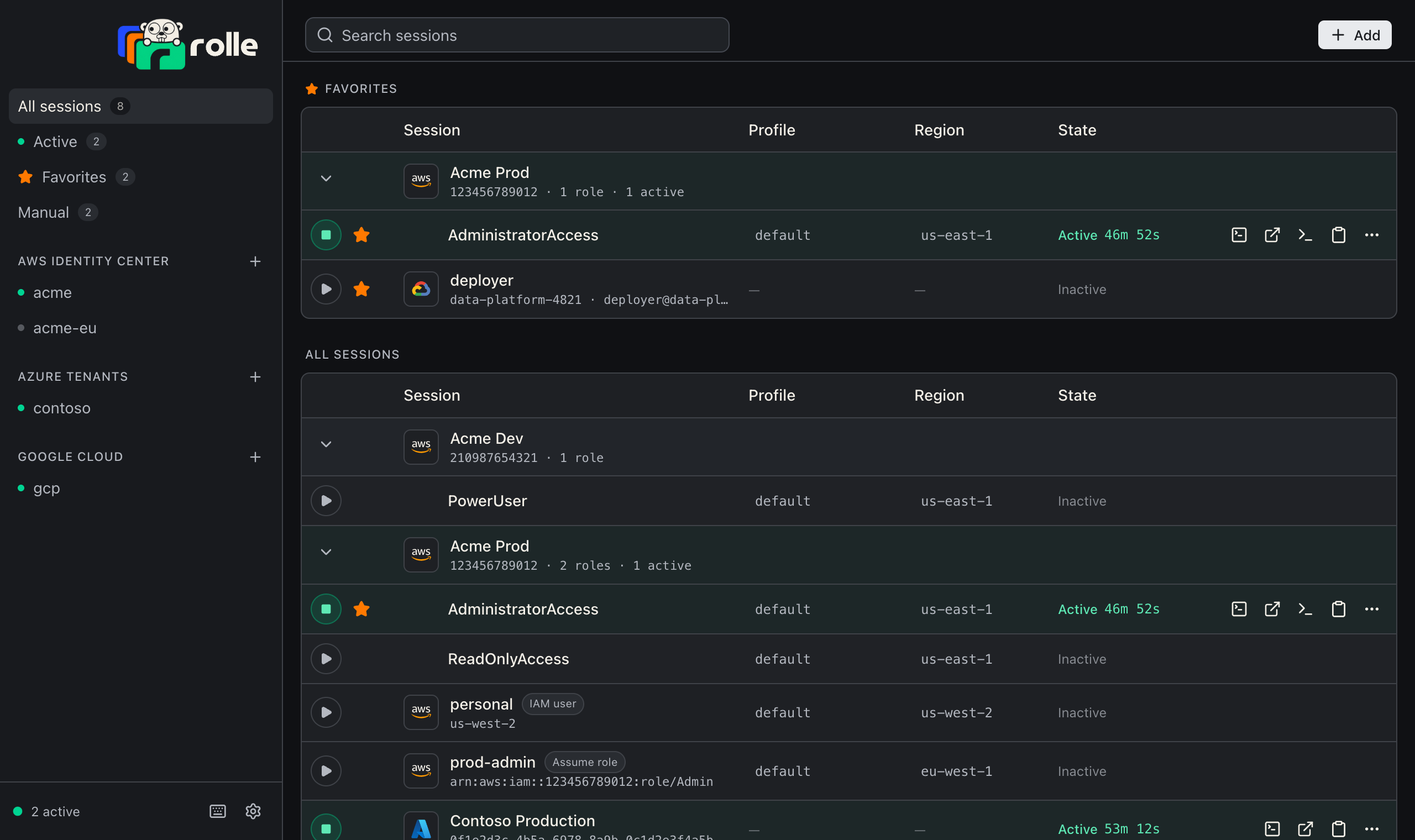
The sidebar filters the table: All sessions, Active, Favorites, Manual (sessions without an integration), and one entry per integration. A dot next to an integration shows whether it is signed in; hover it for the label.
Session table
Sessions sort by provider (AWS, Azure, Google Cloud), then by name. Identity Center roles group under their account; click the account row to collapse or expand it. Drag the edge of the Profile, Region, or State header to resize the column.
Each row shows the profile name and region (click either to change it), the state with a live countdown, and actions:
| Action | Effect |
|---|---|
| Start / Stop | Start signs in first when the integration is signed out |
| Terminal | Opens a terminal with the session ready |
| Console | Opens the cloud console |
| Copy profile command | Copies aws --profile <name> |
| Copy env | Copies the credentials as shell exports |
| Star | Adds the session to the Favorites panel |
The row menu also renames a session, sets the AWS profile name, changes the region, and removes the session.
Search
The search box matches the session name, account ID, role name, profile, and region. Account groups expand while you search.
Tray
The tray icon shows the active count (macOS) or a green dot (Windows, Linux). Its menu lists active sessions with a countdown; each opens a submenu with Stop, Open console, Open terminal, Copy credentials as env, and Copy profile command. Stop all ends every active session. Inactive favorites start with one click, and the AWS, Azure, and Google Cloud submenus list the rest, with Identity Center roles under their account. Settings… opens the settings dialog. Closing the window keeps rolle in the tray when Settings → General → Keep running in the tray is on.
Keyboard shortcuts
Hold ⌘ (Ctrl on Windows and Linux) for a moment and each shortcut appears as a badge next to its control. Press ⌘/ or the keyboard button at the bottom of the sidebar for the full list.
| Action | macOS | Windows and Linux |
|---|---|---|
| Settings | ⌘, | Ctrl+, |
| Search sessions | ⌘F | Ctrl+F |
| Import from this machine | ⌘I | Ctrl+I |
| All sessions, Active, Favorites | ⌘1, ⌘2, ⌘3 | Ctrl+1, Ctrl+2, Ctrl+3 |
| Clear the search, close a dialog | Esc | Esc |
| Keyboard shortcuts | ⌘/ | Ctrl+/ |